Getting started
Every drawing starts the same way: create a Bitmap, get a Graphics for it, draw with pens, brushes and fonts, then save. Those objects hold resources, so the examples below also show how to dispose them and how to load images safely.
CreateImage

Creates a 640 × 400 Bitmap, draws on it through Graphics.FromImage, and saves a PNG.
Drawing is painter's order: later calls paint over earlier ones. The blue fill covers the whole canvas (including the WhiteSmoke clear colour), the gold ellipse is filled next, and the white outline is drawn last so it stays visible on top of the fill.
internal static void GettingStartedCreateImage(ExampleContext context)
{
    using var bitmap = new Bitmap(640, 400, PixelFormat.Format32bppArgb);
    using var graphics = Graphics.FromImage(bitmap);
    graphics.Clear(Color.WhiteSmoke);
    using var background = new SolidBrush(Color.FromArgb(255, 35, 88, 145));
    using var accent = new SolidBrush(Color.FromArgb(255, 241, 177, 63));
    using var pen = new Pen(Color.White, 5);
    graphics.FillRectangle(background, 0, 0, 640, 400);
    graphics.FillEllipse(accent, new RectangleF(230, 80, 180, 180));
    graphics.DrawEllipse(pen, new RectangleF(230, 80, 180, 180));
    ExampleSupport.Save(bitmap, context, "CreateImage-create-image.png", ImageFormat.Png);
}
OpenInspectSave

Loads an image file, reads its size and format, and saves a copy.
Image.FromFile returns an Image whose Width, Height and RawFormat describe the file. Save(path, ImageFormat.Png) chooses the encoder from the format you pass, not from the source, so the same call converts between formats. Dispose the loaded image when you are done with it.
internal static void GettingStartedOpenInspectSave(ExampleContext context)
{
    string input = context.EnsureGeneratedImage("OpenInspectSave-input.png");
    using var image = Image.FromFile(input);
    Console.WriteLine($"  source: {image.Width}x{image.Height}, format={image.RawFormat.Name}");
    image.Save(context.Path("OpenInspectSave-copy.png"), ImageFormat.Png);
}
ResourceLifetime
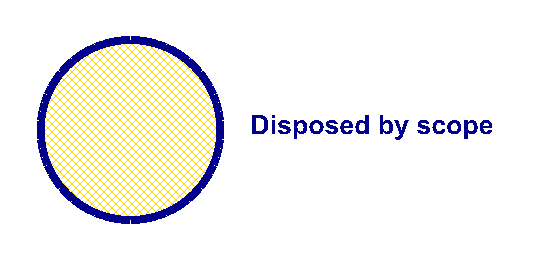
Shows which objects need disposing: the bitmap, the Graphics, and every pen, brush and font.
Stacked using statements dispose in reverse order at the closing brace, after the image has been saved. Create resources once, outside any loop, and reuse them (see ResourceReuse). Forgetting to dispose a Graphics or Bitmap is the most common leak.
internal static void GettingStartedResourceLifetime(ExampleContext context)
{
    using (var bitmap = new Bitmap(560, 260, PixelFormat.Format32bppArgb))
    using (var graphics = Graphics.FromImage(bitmap))
    using (var pen = new Pen(Color.DarkBlue, 8))
    using (var brush = new HatchBrush(HatchStyle.DiagonalCross, Color.Gold, Color.White))
    using (var font = new DrawingFont(FontFamily.GenericSansSerif, 20, FontStyle.Bold))
    using (var textBrush = new SolidBrush(Color.DarkBlue))
    {
        graphics.Clear(Color.White);
        graphics.FillEllipse(brush, new RectangleF(40, 40, 180, 180));
        graphics.DrawEllipse(pen, new RectangleF(40, 40, 180, 180));
        graphics.DrawString("Disposed by scope", font, textBrush, 250, 110);
        ExampleSupport.Save(bitmap, context, "ResourceLifetime-resource-lifetime.png", ImageFormat.Png);
    }
}
StreamRoundTrip

Encodes an image into a MemoryStream and decodes it again with Image.FromStream.
After Save the stream position is at the end, so set Position = 0 before decoding; otherwise the decoder starts at the wrong byte. Keep the stream alive for as long as you use the decoded image.
internal static void GettingStartedStream(ExampleContext context)
{
    using var source = new Bitmap(320, 200, PixelFormat.Format32bppArgb);
    using (var graphics = Graphics.FromImage(source))
    using (var brush = new SolidBrush(Color.MediumSeaGreen))
    {
        graphics.Clear(Color.White);
        graphics.FillRectangle(brush, 35, 35, 250, 130);
    }

    using var encoded = new MemoryStream();
    source.Save(encoded, ImageFormat.Png);
    encoded.Position = 0;
    using var reopened = Image.FromStream(encoded);
    reopened.Save(context.Path("StreamRoundTrip-stream-reopened.png"), ImageFormat.Png);
    Console.WriteLine($"  stream round trip: {reopened.Width}x{reopened.Height}");
}
GeometryAndColours
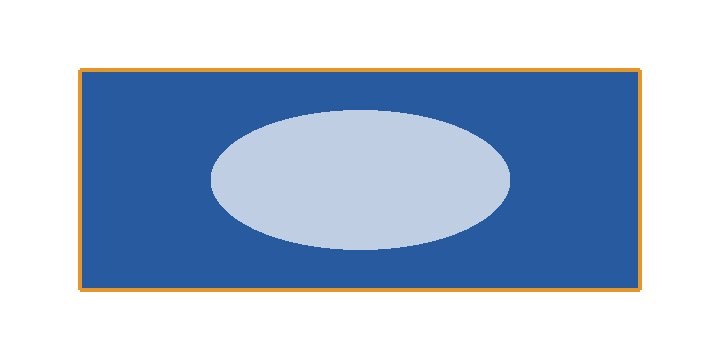
Builds a small composition from rectangles and ARGB colours.
RectangleF(x, y, width, height) is position then size, not two corners. Color.FromArgb(alpha, r, g, b) takes alpha first; the white ellipse has alpha 180 of 255, so the blue rectangle shows through it.
internal static void GeometryAndColours(ExampleContext c)
{
    using var bitmap = ExampleSupport.NewCanvas(720, 360, Color.White);
    using var g = Graphics.FromImage(bitmap);
    using var brush = new SolidBrush(Color.FromArgb(255, 40, 90, 160));
    using var pen = new Pen(Color.FromArgb(255, 230, 150, 40), 4);
    g.FillRectangle(brush, new RectangleF(80, 70, 560, 220));
    g.DrawRectangle(pen, new RectangleF(80, 70, 560, 220));
    g.FillEllipse(new SolidBrush(Color.FromArgb(180, Color.White)), new RectangleF(210, 110, 300, 140));
    ExampleSupport.Save(bitmap, c, "GeometryAndColours-geometry-colours.png", ImageFormat.Png);
}
SystemDrawingMigration
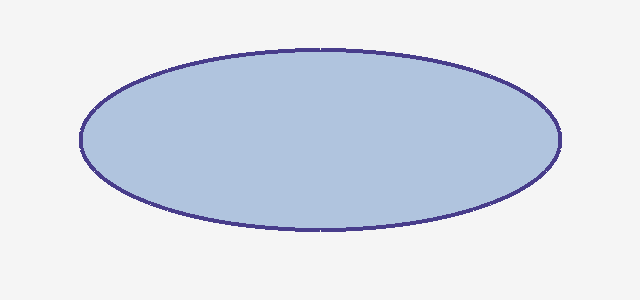
The drawing code is the System.Drawing API (Graphics, Pen, SolidBrush, FillEllipse, DrawEllipse); what changes are the using lines, because the types live in sub-namespaces:
| Types | Namespace |
|---|---|
Graphics |
DRIT.Drawing |
Bitmap, Image, ImageFormat |
DRIT.Drawing.Imaging |
Color |
DRIT.Drawing.Colors |
Point, RectangleF, Size |
DRIT.Drawing.Geometry |
Pen |
DRIT.Drawing.Pens |
SolidBrush, TextureBrush |
DRIT.Drawing.Brushes |
GraphicsPath, Matrix, HatchBrush, LinearGradientBrush, SmoothingMode, DashStyle, CombineMode |
DRIT.Drawing.Drawing2D |
Font, FontFamily, StringFormat |
DRIT.Drawing.Text |
PixelFormat, FontStyle, GraphicsUnit, ImageLockMode |
DRIT.Drawing.Enums |
Check each call you migrate: rendering is done in managed code, not by the operating system, so details such as antialiasing and font hinting can differ.
internal static void SystemDrawingMigration(ExampleContext c)
{
    using var bitmap = ExampleSupport.NewCanvas(640, 300, Color.WhiteSmoke);
    using var g = Graphics.FromImage(bitmap);
    using var pen = new Pen(Color.DarkSlateBlue, 4);
    using var brush = new SolidBrush(Color.LightSteelBlue);
    g.FillEllipse(brush, new RectangleF(80, 50, 480, 180));
    g.DrawEllipse(pen, new RectangleF(80, 50, 480, 180));
    File.WriteAllText(c.Path("SystemDrawingMigration-system-drawing-migration.txt"),
        "The drawing calls use the System.Drawing-style API surface in the DRIT.Drawing namespace.\n" +
        "The same code can be moved by changing the namespace import; no native System.Drawing dependency is required.");
    ExampleSupport.Save(bitmap, c, "SystemDrawingMigration-system-drawing-migration.png", ImageFormat.Png);
}
DecodeLimits
Image files from users can be tiny on disk and enormous in memory. ImageDecodeLimits makes the decoder check the declared size and refuse before it allocates anything. This example sets an absurdly small limit (100 pixels) so the rejection is easy to see; the result it writes is:
Rejected safely: PNG dimensions exceed the configured pixel limit.
A rejected file raises InvalidDataException. Pick limits that fit your inputs rather than copying this threshold; the defaults (100 million pixels, 100 000 pixels per side) suit trusted files. For an upload endpoint with realistic limits and several kinds of bad input, see DecodeLimitsForUploads.
internal static void DecodeLimits(ExampleContext c)
{
    using var bitmap = ExampleSupport.CreatePhotoLike(240, 160);
    using var stream = new MemoryStream();
    bitmap.Save(stream, ImageFormat.Png);
    stream.Position = 0;
    try
    {
        using var ignored = Image.FromStream(stream, new ImageDecodeLimits(maxPixels: 100));
        throw new InvalidOperationException("The intentionally small decode limit did not reject the image.");
    }
    catch (InvalidDataException exception)
    {
        File.WriteAllText(c.Path("DecodeLimits-decode-limits.txt"), $"Rejected safely: {exception.Message}");
    }
}