Raster images
A raster image is a fixed grid of pixels. These examples cover saving to the supported formats, scaling and cropping, working with pixels directly, adjusting colour and JPEG quality, and decoding untrusted files safely.
RasterFormats

Saves one bitmap as PNG, JPEG, BMP, GIF and TIFF by passing a different ImageFormat to Save.
The encoder is chosen by the format you pass, not by the file extension. The formats differ in what they keep: PNG is lossless with full alpha; JPEG is lossy and has no alpha; GIF is limited to a 256-colour palette; BMP and TIFF here are uncompressed. The sizes the example recorded for this flat-colour picture:
png       4,716 bytes
jpg       8,347 bytes
bmp     576,054 bytes
gif       1,725 bytes
tiff    576,194 bytes
Real photographs behave very differently from this synthetic image: JPEG usually wins on size for photographs, PNG for flat graphics.
internal static void ImagesSupportedRasterFormats(ExampleContext context)
{
    using var bitmap = ExampleSupport.CreatePhotoLike();
    var formats = new (string Name, ImageFormat Format)[]
    {
        ("png", ImageFormat.Png), ("jpg", ImageFormat.Jpeg), ("bmp", ImageFormat.Bmp),
        ("gif", ImageFormat.Gif), ("tiff", ImageFormat.Tiff),
    };
    var sizes = new System.Text.StringBuilder();
    foreach (var format in formats)
    {
        string path = context.Path($"RasterFormats-supported-formats.{format.Name}");
        bitmap.Save(path, format.Format);
        sizes.AppendLine($"{format.Name,-5} {new FileInfo(path).Length,9:N0} bytes");
    }
    File.WriteAllText(context.Path("RasterFormats-sizes.txt"), sizes.ToString());
    Console.WriteLine($"  wrote {formats.Length} raster formats");
}
ScaleAndCrop

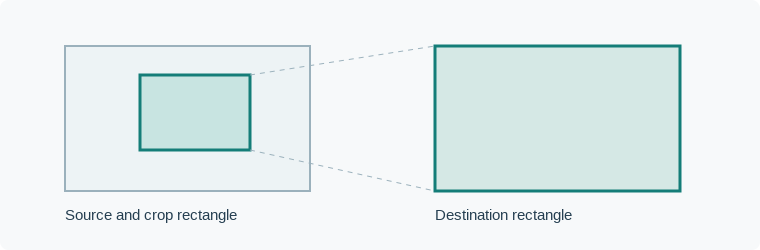
Draws a source rectangle of an image into a destination rectangle with DrawImage.
Scaling and cropping are the same call: the source rectangle selects which pixels to take (GraphicsUnit.Pixel) and the destination rectangle says where and how large to draw them. The left image maps the whole source into a rectangle with a different aspect ratio, which stretches it; the right image takes only a region of the source, which crops and enlarges it. Choose destination proportions that match the source whenever distortion is unwanted.
internal static void ImagesScaleAndCrop(ExampleContext context)
{
    using var source = ExampleSupport.CreatePhotoLike();
    using var result = ExampleSupport.NewCanvas(720, 420, Color.White);
    using var graphics = Graphics.FromImage(result);
    graphics.DrawImage(source, new RectangleF(40, 40, 300, 340),
        new RectangleF(0, 0, source.Width, source.Height), GraphicsUnit.Pixel);
    graphics.DrawImage(source, new RectangleF(390, 80, 260, 240),
        new RectangleF(100, 30, 220, 170), GraphicsUnit.Pixel);
    ExampleSupport.Save(result, context, "ScaleAndCrop-scale-crop.png", ImageFormat.Png);
}
RotateFlipClone


Copies a bitmap with new Bitmap(source), rotates and flips the copy with RotateFlip, and saves both.
RotateFlip changes the bitmap it is called on in place, so make the copy first if you still need the original. A 90-degree rotation swaps width and height, as the taller second image shows.
internal static void RotateFlipAndClone(ExampleContext c)
{
    using var source = ExampleSupport.CreatePhotoLike();
    using var clone = new Bitmap(source);
    clone.RotateFlip(RotateFlipType.Rotate90FlipX);
    ExampleSupport.Save(source, c, "RotateFlipClone-original.png", ImageFormat.Png);
    ExampleSupport.Save(clone, c, "RotateFlipClone-rotated-clone.png", ImageFormat.Png);
}
PixelAccess
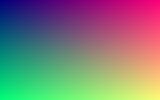
Fills a bitmap pixel by pixel with SetPixel and reads one back with GetPixel.
Red grows with x and green with y, while blue stays constant. SetPixel and GetPixel are the simplest way to touch pixels and are fine for small images and tests; each call has overhead, so use LockBits for anything large.
internal static void ReadWritePixels(ExampleContext c)
{
    using var bitmap = new Bitmap(160, 100, PixelFormat.Format32bppArgb);
    for (int y = 0; y < bitmap.Height; y++)
        for (int x = 0; x < bitmap.Width; x++)
            bitmap.SetPixel(x, y, Color.FromArgb(255, x * 255 / bitmap.Width, y * 255 / bitmap.Height, 120));
    Console.WriteLine($"  center pixel: {bitmap.GetPixel(bitmap.Width / 2, bitmap.Height / 2)}");
    ExampleSupport.Save(bitmap, c, "PixelAccess-pixels.png", ImageFormat.Png);
}
LockBits

Locks the bitmap's pixel memory, fills a gradient block through a byte array, and unlocks it in a finally block.
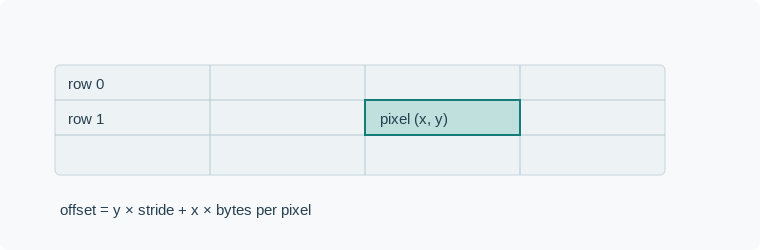
With Format32bppArgb, each pixel is four bytes in the order blue, green, red, alpha. Rows are Stride bytes apart, which can be larger than Width * 4, so the offset of pixel (x, y) is y * Stride + x * 4. Copy the locked bytes out with Marshal.Copy, edit the array, and copy it back. Always call UnlockBits, even if an exception occurs; otherwise the changes may not be applied and the bitmap stays locked. Code for other pixel formats must use that format's byte layout.
internal static void DirectPixelAccess(ExampleContext c)
{
    using var bitmap = ExampleSupport.NewCanvas(180, 120, Color.White);
    var rect = new Rectangle(0, 0, bitmap.Width, bitmap.Height);
    var data = bitmap.LockBits(rect, ImageLockMode.ReadWrite, PixelFormat.Format32bppArgb);
    try
    {
        // Copy the locked pixels out, edit them in a byte array, and copy them back.
        // Rows are Stride bytes apart (not Width * 4), and each pixel is stored as B, G, R, A.
        var pixels = new byte[Math.Abs(data.Stride) * data.Height];
        Marshal.Copy(data.Scan0, pixels, 0, pixels.Length);
        for (int y = 20; y < 100; y++)
        {
            for (int x = 30; x < 150; x++)
            {
                int offset = y * data.Stride + x * 4;
                pixels[offset] = 160;                                   // blue
                pixels[offset + 1] = (byte)((y - 20) * 255 / 79);       // green grows downwards
                pixels[offset + 2] = (byte)((x - 30) * 255 / 119);      // red grows to the right
                pixels[offset + 3] = 255;                               // alpha
            }
        }
        Marshal.Copy(pixels, 0, data.Scan0, pixels.Length);
    }
    finally
    {
        bitmap.UnlockBits(data);
    }
    ExampleSupport.Save(bitmap, c, "LockBits-lockbits.png", ImageFormat.Png);
}
ImageAttributes

Draws an image through a colour matrix supplied by ImageAttributes.
The 5 × 5 matrix multiplies red, green and blue by 0.35 and adds 0.65 to each, leaving alpha alone, which lightens the picture (left). The matrix applies to that one DrawImage call only; the source bitmap is not modified, as the unchanged right-hand copy shows.
internal static void ImageAttributes(ExampleContext c)
{
    using var source = ExampleSupport.CreatePhotoLike(360, 220);
    using var output = ExampleSupport.NewCanvas(720, 300, Color.White);
    using var g = Graphics.FromImage(output);
    using var attributes = new ImageAttributes();
    attributes.SetColorMatrix(new ColorMatrix(new[]
    {
        new[] { 0.35f, 0f, 0f, 0f, 0f }, new[] { 0f, 0.35f, 0f, 0f, 0f },
        new[] { 0f, 0f, 0.35f, 0f, 0f }, new[] { 0f, 0f, 0f, 1f, 0f }, new[] { 0.65f, 0.65f, 0.65f, 0f, 1f },
    }));
    g.DrawImage(source, new RectangleF(30, 40, 300, 190), new RectangleF(0, 0, source.Width, source.Height), GraphicsUnit.Pixel, attributes);
    g.DrawImage(source, new RectangleF(390, 40, 300, 190), new RectangleF(0, 0, source.Width, source.Height), GraphicsUnit.Pixel);
    ExampleSupport.Save(output, c, "ImageAttributes-image-attributes.png", ImageFormat.Png);
}
JpegQuality



Encodes the same image as JPEG at quality 30, at quality 90, and with no quality given.
The quality (1–100) is passed through EncoderParameters with Encoder.Quality. Lower quality gives a smaller file and visible blocking around edges; higher quality is larger and closer to the source. The sizes of the three files:
quality 30:   6,180 bytes
quality 90:  11,576 bytes
unspecified:  8,347 bytes
When you do not pass a quality the encoder uses its own default, which is not guaranteed to match either value. JPEG is lossy: re-saving a JPEG repeatedly degrades it, so keep a lossless original.
internal static void JpegQuality(ExampleContext c)
{
    using var source = ExampleSupport.CreatePhotoLike(480, 300);
    foreach (long quality in new[] { 30L, 90L })
        using (var parameters = new EncoderParameters())
        using (var parameter = new EncoderParameter(Encoder.Quality, quality))
        using (var output = File.Create(c.Path($"JpegQuality-jpeg-quality-{quality}.jpg")))
        {
            parameters.Param = new[] { parameter };
            source.Save(output, ImageFormat.Jpeg, parameters);
        }
    source.Save(c.Path("JpegQuality-jpeg-quality-default.jpg"), ImageFormat.Jpeg);

    File.WriteAllText(c.Path("JpegQuality-sizes.txt"),
        $"quality 30:  {new FileInfo(c.Path("JpegQuality-jpeg-quality-30.jpg")).Length,6:N0} bytes\n" +
        $"quality 90:  {new FileInfo(c.Path("JpegQuality-jpeg-quality-90.jpg")).Length,6:N0} bytes\n" +
        $"unspecified: {new FileInfo(c.Path("JpegQuality-jpeg-quality-default.jpg")).Length,6:N0} bytes\n");
}
Resolution
Reads HorizontalResolution, VerticalResolution and RawFormat from a bitmap and writes them to a text file:
HorizontalResolution=96
VerticalResolution=96
RawFormat=MemoryBmp
Resolution is metadata describing the intended physical size (dots per inch); it does not change the pixel dimensions. RawFormat of a bitmap created in memory is MemoryBmp; for an image loaded from a file it is the file's format.
internal static void ResolutionAndMetadata(ExampleContext c)
{
    using var bitmap = ExampleSupport.CreatePhotoLike();
    File.WriteAllText(c.Path("Resolution-resolution.txt"), $"HorizontalResolution={bitmap.HorizontalResolution}\nVerticalResolution={bitmap.VerticalResolution}\nRawFormat={bitmap.RawFormat.Name}\n");
}
DecodeLimitsForUploads
Validates image uploads with ImageDecodeLimits(maxPixels: 1_000_000, maxDimension: 2_000) and four different inputs. The report the example wrote:
thumbnail 320x200: accepted as 320x200
poster 1500x1100: rejected (InvalidDataException) PNG dimensions exceed the configured pixel limit.
banner 2400x100: rejected (InvalidDataException) PNG dimensions are outside the supported range.
not an image: rejected (NotSupportedException) Unknown or unsupported image format.
The limits are checked from the file's declared size before any pixel memory is allocated, so a small file that claims enormous dimensions is refused cheaply. Each limit rejects a different input: the poster has too many pixels, the banner has few pixels but is wider than maxDimension, and the text file is not an image at all (a different exception type). At an upload boundary, catch these, report a clear error, and never let a decode failure take down the request. For the simplest form of this, see DecodeLimits.
internal static void DecodeLimitsForUploads(ExampleContext c)
{
    // Limits for an upload endpoint: at most 1 megapixel and 2000 pixels along either side.
    var limits = new ImageDecodeLimits(maxPixels: 1_000_000, maxDimension: 2_000);
    var uploads = new (string Name, byte[] Bytes)[]
    {
        ("thumbnail 320x200", EncodePng(320, 200)),
        ("poster 1500x1100", EncodePng(1500, 1100)),   // 1.65 megapixels
        ("banner 2400x100", EncodePng(2400, 100)),     // only 0.24 megapixels, but too wide
        ("not an image", System.Text.Encoding.ASCII.GetBytes("this is not an image")),
    };

    var report = new System.Text.StringBuilder();
    foreach (var (name, bytes) in uploads)
    {
        using var stream = new MemoryStream(bytes);
        try
        {
            using var image = Image.FromStream(stream, limits);
            report.AppendLine($"{name}: accepted as {image.Width}x{image.Height}");
        }
        catch (Exception ex) when (ex is InvalidDataException || ex is ArgumentException || ex is NotSupportedException)
        {
            report.AppendLine($"{name}: rejected ({ex.GetType().Name}) {ex.Message}");
        }
    }
    File.WriteAllText(c.Path("DecodeLimitsForUploads-report.txt"), report.ToString());

    static byte[] EncodePng(int width, int height)
    {
        using var source = ExampleSupport.CreatePhotoLike(width, height);
        using var stream = new MemoryStream();
        source.Save(stream, ImageFormat.Png);
        return stream.ToArray();
    }
}
MultiStripTiff
Loads the TIFF named by the DRIT_EXAMPLE_TIFF_INPUT environment variable, or generates one when it is not set, re-saves it as TIFF and writes a short report:
Input=MultiStripTiff-generated-tiff.tiff
Dimensions=240x160
Format=Tiff
The copy is a fresh encoding, so details of the original such as its strip layout and extra metadata are not guaranteed to be kept. The generated fallback is not multi-strip; to exercise that layout, set the variable to a multi-strip TIFF of your own.
internal static void MultiStripTiff(ExampleContext c)
{
    string? input = Environment.GetEnvironmentVariable("DRIT_EXAMPLE_TIFF_INPUT");
    if (string.IsNullOrWhiteSpace(input) || !File.Exists(input))
    {
        using var generated = ExampleSupport.CreatePhotoLike(240, 160);
        input = c.Path("MultiStripTiff-generated-tiff.tiff");
        generated.Save(input, ImageFormat.Tiff);
    }
    using var image = Image.FromFile(input);
    image.Save(c.Path("MultiStripTiff-tiff-copy.tiff"), ImageFormat.Tiff);
    File.WriteAllText(c.Path("MultiStripTiff-tiff-info.txt"), $"Input={System.IO.Path.GetFileName(input)}\nDimensions={image.Width}x{image.Height}\nFormat={image.RawFormat.Name}\n");
}
Icon

Writes an ICO file by hand (a header, a directory entry and a PNG payload), loads it with Icon, and renders it to a bitmap with ToBitmap.
An ICO is a small container: a directory lists each image with its size and where its data starts, and each image can be a PNG. This example writes a single 64 × 64 entry, so it does not show choosing among several sizes or the older bitmap-based entries.
internal static void WorkWithIcon(ExampleContext c)
{
    using var source = ExampleSupport.CreatePhotoLike(64, 64);
    using var png = new MemoryStream();
    source.Save(png, ImageFormat.Png);
    byte[] pngBytes = png.ToArray();
    string iconPath = c.Path("Icon-input.ico");
    using (var output = File.Create(iconPath))
    using (var writer = new BinaryWriter(output))
    {
        writer.Write((ushort)0);
        writer.Write((ushort)1);
        writer.Write((ushort)1);
        writer.Write((byte)64);
        writer.Write((byte)64);
        writer.Write((byte)0);
        writer.Write((byte)0);
        writer.Write((ushort)1);
        writer.Write((ushort)32);
        writer.Write((uint)pngBytes.Length);
        writer.Write((uint)22);
        writer.Write(pngBytes);
    }
    using var icon = new Icon(iconPath);
    using var bitmap = icon.ToBitmap();
    ExampleSupport.Save(bitmap, c, "Icon-icon.png", ImageFormat.Png);
    Console.WriteLine($"  icon size: {icon.Width}x{icon.Height}");
}