Brushes and pens
A pen draws outlines and has width, dashes, joins and caps. A brush fills areas with a solid colour, a hatch pattern, a gradient or a texture. Both are disposable and can be reused for as many drawing calls as you like.
PenStyles
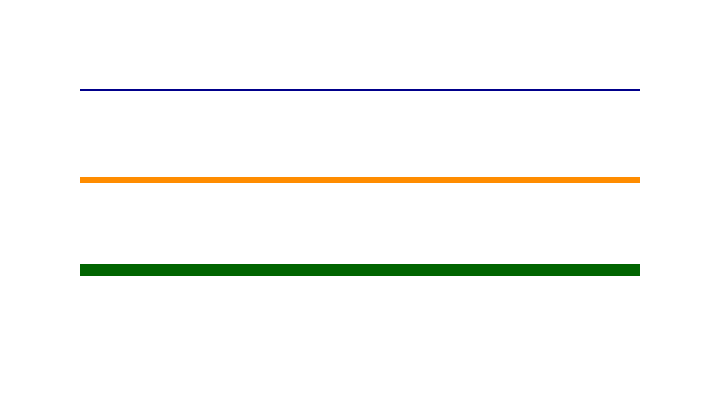
Draws three identical lines with pens of width 2, 6 and 12.
Pen width is in the same units as the coordinates you draw with, centred on the path: a 12-unit pen extends 6 units to each side of the line. A pen created with width 1 draws a one-pixel line at the default scale.
internal static void PensColourAndWidth(ExampleContext context)
{
    using var bitmap = ExampleSupport.NewCanvas(720, 420, Color.White);
    using var graphics = Graphics.FromImage(bitmap);
    Color[] colours = { Color.DarkBlue, Color.DarkOrange, Color.DarkGreen };
    float[] widths = { 2, 6, 12 };
    for (int i = 0; i < colours.Length; i++)
    {
        using var pen = new Pen(colours[i], widths[i]);
        graphics.DrawLine(pen, 80, 90 + i * 90, 640, 90 + i * 90);
    }
    ExampleSupport.Save(bitmap, context, "PenStyles-pen-colour-width.png", ImageFormat.Png);
}
SolidAndHatchBrushes
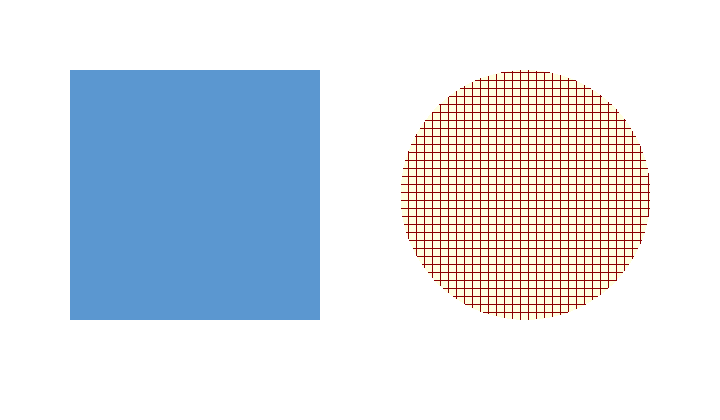
Fills a square with a translucent SolidBrush and a circle with a HatchBrush.
A solid brush with alpha below 255 lets what is already on the canvas show through: the white background lightens the blue. A HatchBrush(style, foreground, background) repeats a small pattern (Cross here) at pixel scale, so the pattern does not grow when the shape does.
internal static void BrushesSolidAndHatch(ExampleContext context)
{
    using var bitmap = ExampleSupport.NewCanvas(720, 420, Color.White);
    using var graphics = Graphics.FromImage(bitmap);
    using var solid = new SolidBrush(Color.FromArgb(220, 65, 135, 200));
    using var hatch = new HatchBrush(HatchStyle.Cross, Color.DarkRed, Color.LightYellow);
    graphics.FillRectangle(solid, 70, 70, 250, 250);
    graphics.FillEllipse(hatch, new RectangleF(400, 70, 250, 250));
    ExampleSupport.Save(bitmap, context, "SolidAndHatchBrushes-solid-hatch.png", ImageFormat.Png);
}
PenDashesAndJoins
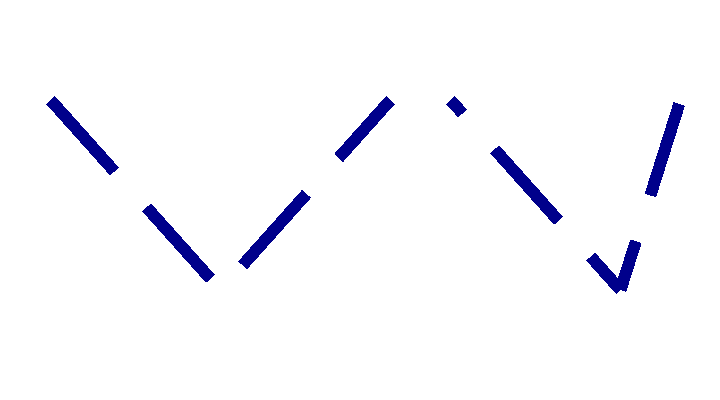
Draws dashed V shapes with a custom dash pattern and a bevelled join.
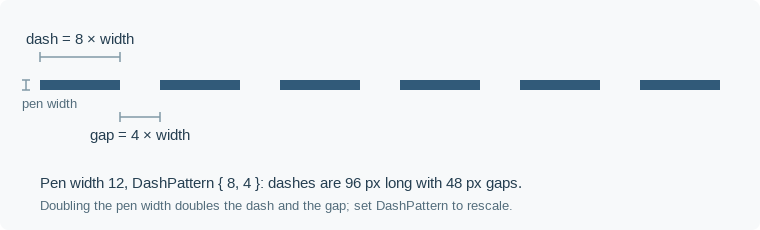
With DashStyle.Custom, the numbers in DashPattern alternate dash and gap, and each is a multiple of the pen width, not pixels. The { 8, 4 } pattern on a 12-unit pen therefore gives 96-pixel dashes with 48-pixel gaps. LineJoin decides how two segments meet at a corner (Miter, Bevel, Round); the dash pattern carries on around the corner.
internal static void DashesAndJoins(ExampleContext c)
{
    using var bitmap = ExampleSupport.NewCanvas(720, 400, Color.White);
    using var g = Graphics.FromImage(bitmap);
    using var pen = new Pen(Color.DarkBlue, 12) { DashStyle = DashStyle.Custom, DashPattern = new[] { 8f, 4f }, LineJoin = LineJoin.Bevel };
    g.DrawPolylineGroup(pen, new[] { new[] { new PointF(50, 100), new PointF(220, 290), new PointF(390, 100) }, new[] { new PointF(450, 100), new PointF(620, 290), new PointF(680, 100) } });
    ExampleSupport.Save(bitmap, c, "PenDashesAndJoins-dashes-joins.png", ImageFormat.Png);
}
ArrowCaps
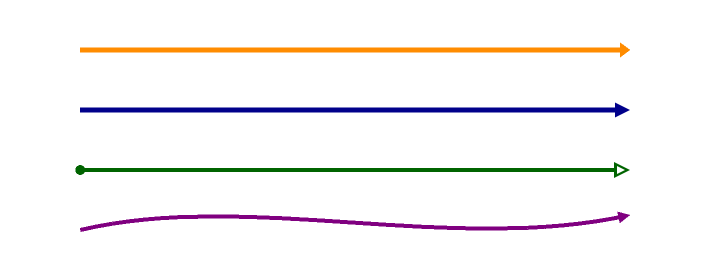
Puts arrowheads on lines, using each kind of cap the pen supports.
From top to bottom: the built-in LineCap.ArrowAnchor (fixed size relative to the pen); an AdjustableArrowCap assigned to CustomEndCap; an unfilled arrow at the end with a round anchor at the start (StartCap); and the same filled arrow on a Bézier curve.
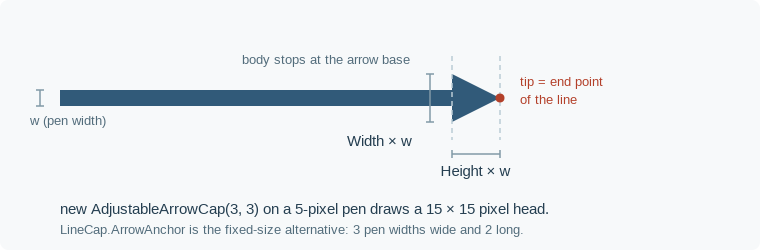
An AdjustableArrowCap(width, height) is sized in multiples of the pen width: on a 5-unit pen, (3, 3) gives a 15 × 15 head. Its tip sits on the end point of the line and the line body stops at the arrow's base, so the line never shows through. Caps are not drawn on closed figures such as rectangles.
internal static void ArrowCap(ExampleContext c)
{
    using var bitmap = ExampleSupport.NewCanvas(720, 260, Color.White);
    using var g = Graphics.FromImage(bitmap);
    g.SmoothingMode = SmoothingMode.AntiAlias;

    // A built-in anchor; its size follows the pen width.
    using var anchorPen = new Pen(Color.DarkOrange, 5) { EndCap = LineCap.ArrowAnchor };
    g.DrawLine(anchorPen, 80, 50, 630, 50);

    // An adjustable arrow: width and height are multiples of the pen width (3 x 5 = 15 px).
    using var filledArrow = new AdjustableArrowCap(3, 3);
    using var filledPen = new Pen(Color.DarkBlue, 5) { CustomEndCap = filledArrow };
    g.DrawLine(filledPen, 80, 110, 630, 110);

    // Unfilled head, with a different cap at each end of the line.
    using var hollowArrow = new AdjustableArrowCap(4, 4, isFilled: false);
    using var hollowPen = new Pen(Color.DarkGreen, 4) { StartCap = LineCap.RoundAnchor, CustomEndCap = hollowArrow };
    g.DrawLine(hollowPen, 80, 170, 630, 170);

    // The caps also work on curves.
    using var curvePen = new Pen(Color.Purple, 4) { CustomEndCap = filledArrow };
    g.DrawBezier(curvePen, new PointF(80, 230), new PointF(250, 190), new PointF(450, 255), new PointF(630, 215));
    ExampleSupport.Save(bitmap, c, "ArrowCaps-arrow-cap.png", ImageFormat.Png);
}
LinearGradients

Fills a rectangle with a two-colour LinearGradientBrush.
The brush is defined by its own rectangle and angle (0 is left to right), independent of the shape you fill with it. Fill a shape that is larger than the brush rectangle and the gradient repeats according to WrapMode, so keep the two rectangles the same unless you want that.
internal static void LinearGradients(ExampleContext c)
{
    using var bitmap = ExampleSupport.NewCanvas(720, 360, Color.White);
    using var g = Graphics.FromImage(bitmap);
    using var brush = new LinearGradientBrush(new RectangleF(60, 60, 600, 240), Color.DarkBlue, Color.LightSkyBlue, 0f);
    g.FillRectangle(brush, new RectangleF(60, 60, 600, 240));
    ExampleSupport.Save(bitmap, c, "LinearGradients-linear-gradient.png", ImageFormat.Png);
}
PathGradients
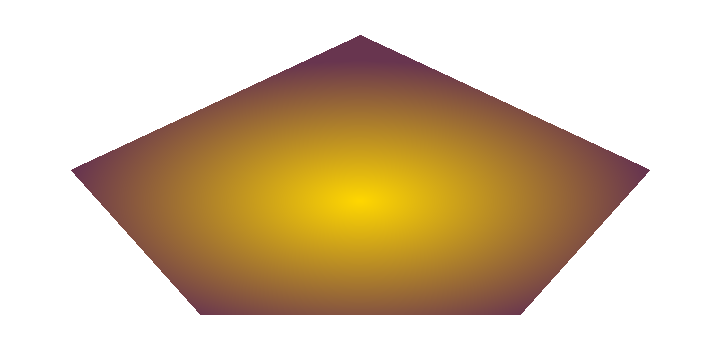
Fills a pentagon with a PathGradientBrush: a centre colour that blends out to a colour at each boundary point.
CenterColor is the colour at the middle and SurroundColors supplies one colour per boundary point; between points the edge colour is interpolated. Use the same points for the brush and the polygon you fill so the gradient lines up with the shape.
internal static void PathGradients(ExampleContext c)
{
    using var bitmap = ExampleSupport.NewCanvas(720, 360, Color.White);
    using var g = Graphics.FromImage(bitmap);
    var points = new[] { new PointF(360, 35), new PointF(650, 170), new PointF(520, 315), new PointF(200, 315), new PointF(70, 170) };
    using var brush = new PathGradientBrush(points) { CenterColor = Color.Gold, SurroundColors = new[] { Color.DarkRed, Color.DarkOrange, Color.Purple, Color.DarkBlue, Color.Teal } };
    g.FillPolygon(brush, points);
    ExampleSupport.Save(bitmap, c, "PathGradients-path-gradient.png", ImageFormat.Png);
}
TextureBrushes
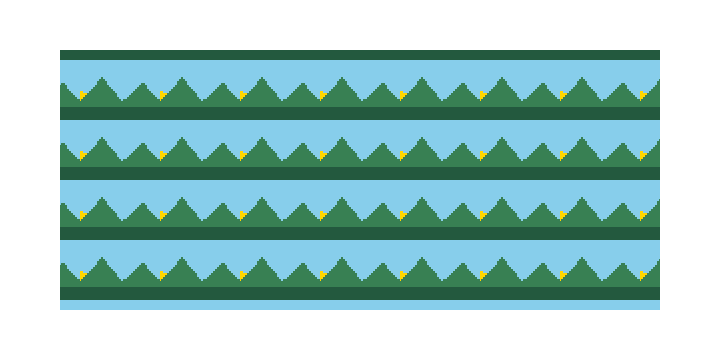
Fills a rectangle by tiling a small image with a TextureBrush.
The 80 × 60 source image repeats from the origin of the coordinate system, not from the shape's corner, so the first tile may be cut off. Apply a transform to the brush to scale, rotate or offset the tiling. Keep the source bitmap alive while the brush is used.
internal static void TextureBrushes(ExampleContext c)
{
    using var bitmap = ExampleSupport.NewCanvas(720, 360, Color.White);
    using var texture = ExampleSupport.CreatePhotoLike(80, 60);
    using var brush = new TextureBrush(texture);
    using var g = Graphics.FromImage(bitmap);
    g.FillRectangle(brush, new RectangleF(60, 50, 600, 260));
    ExampleSupport.Save(bitmap, c, "TextureBrushes-texture-brush.png", ImageFormat.Png);
}
ResourceReuse
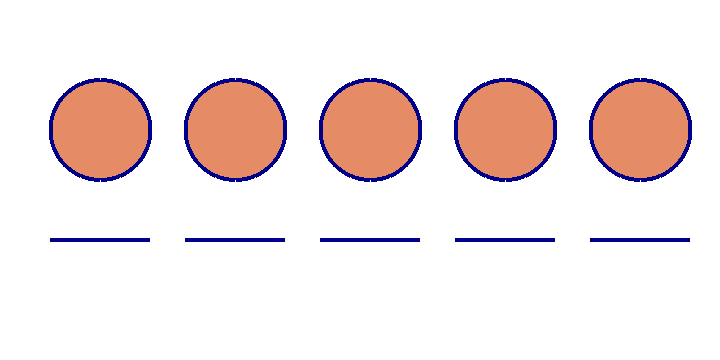
Draws five circles and five lines with one pen and one brush.
Creating a pen or brush per shape wastes allocations and makes disposal error-prone. Create them once, draw in a loop, and let the using declarations dispose them after the image is saved.
internal static void ResourceReuse(ExampleContext c)
{
    using var bitmap = ExampleSupport.NewCanvas(720, 360, Color.White);
    using var g = Graphics.FromImage(bitmap);
    using var pen = new Pen(Color.DarkBlue, 4);
    using var brush = new SolidBrush(Color.FromArgb(190, 220, 100, 50));
    for (int i = 0; i < 5; i++)
    {
        float x = 50 + i * 135;
        g.FillEllipse(brush, new RectangleF(x, 80, 100, 100));
        g.DrawEllipse(pen, new RectangleF(x, 80, 100, 100));
        g.DrawLine(pen, x, 240, x + 100, 240);
    }
    ExampleSupport.Save(bitmap, c, "ResourceReuse-resource-reuse.png", ImageFormat.Png);
}