Text and fonts
Text is drawn from glyph outlines of real font files, so what you get depends on which fonts are installed. The generic families (FontFamily.GenericSansSerif, GenericSerif, GenericMonospace) map to an installed font for the platform: Arial, Times New Roman and Courier New on Windows; DejaVu or Liberation on Linux; Helvetica Neue, Times and Menlo on macOS. If none of the candidates is installed, outline-based features such as DrawStringOnPath and DrawRichText draw nothing, and DrawString falls back to whatever the fallback chain finds. For identical results on every machine, load a font file you ship with a PrivateFontCollection (PrivateFonts).
TextMeasurement
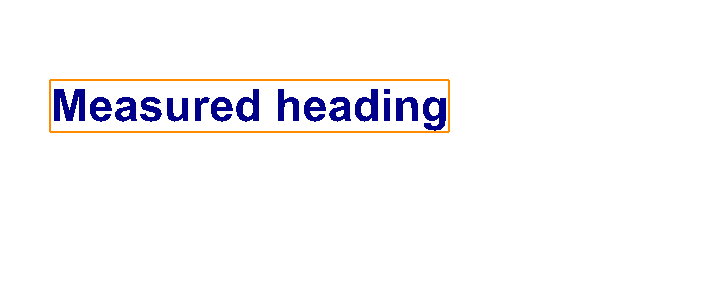
Measures a heading with MeasureString, draws it, and outlines the measured size.
MeasureString returns the size in pixels that a DrawString call with the same font and format will occupy, including the line height above and below the glyphs; the orange box is that measurement placed at the draw origin. Use it to size backgrounds, centre text, or wrap layouts. Measure again when the font, text or environment changes: the result is only valid for that font.
internal static void TextDrawAndMeasure(ExampleContext context)
{
    using var bitmap = ExampleSupport.NewCanvas(720, 300, Color.White);
    using var graphics = Graphics.FromImage(bitmap);
    using var font = new DrawingFont(FontFamily.GenericSansSerif, 34, FontStyle.Bold);
    using var brush = new SolidBrush(Color.DarkBlue);
    using var boundsPen = new Pen(Color.DarkOrange, 2);
    string text = "Measured heading";
    SizeF measured = graphics.MeasureString(text, font);
    graphics.DrawString(text, font, brush, 50, 80);
    graphics.DrawRectangle(boundsPen, new RectangleF(50, 80, measured.Width, measured.Height));
    Console.WriteLine($"  measured text: {measured.Width:0.0} x {measured.Height:0.0}");
    ExampleSupport.Save(bitmap, context, "TextMeasurement-text-measure.png", ImageFormat.Png);
}
TextLayout
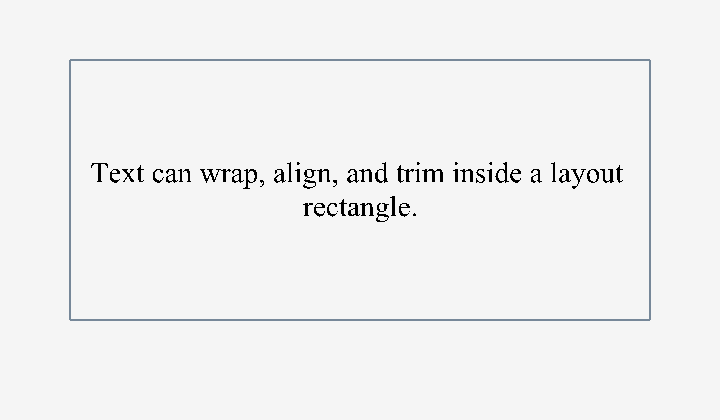
Draws text into a rectangle with a StringFormat that centres it horizontally and vertically.
Passing a layout rectangle to DrawString makes the text wrap at its width. Alignment places lines across the rectangle, LineAlignment places the block down it, and Trimming = StringTrimming.EllipsisWord shortens text that does not fit and ends it with an ellipsis at a word boundary. The sentence here fits, so no ellipsis shows; shrink the rectangle to see the trimming.
internal static void TextAlignmentWrappingAndTrimming(ExampleContext context)
{
    using var bitmap = ExampleSupport.NewCanvas(720, 420, Color.WhiteSmoke);
    using var graphics = Graphics.FromImage(bitmap);
    using var font = new DrawingFont(FontFamily.GenericSerif, 22, FontStyle.Regular);
    using var brush = new SolidBrush(Color.Black);
    using var outline = new Pen(Color.LightSlateGray, 2);
    using var format = new StringFormat
    {
        Alignment = StringAlignment.Center,
        LineAlignment = StringAlignment.Center,
        Trimming = StringTrimming.EllipsisWord,
    };
    var box = new RectangleF(70, 60, 580, 260);
    graphics.DrawRectangle(outline, box);
    graphics.DrawString("Text can wrap, align, and trim inside a layout rectangle.", font, brush, box, format);
    ExampleSupport.Save(bitmap, context, "TextLayout-text-layout.png", ImageFormat.Png);
}
FontStyles
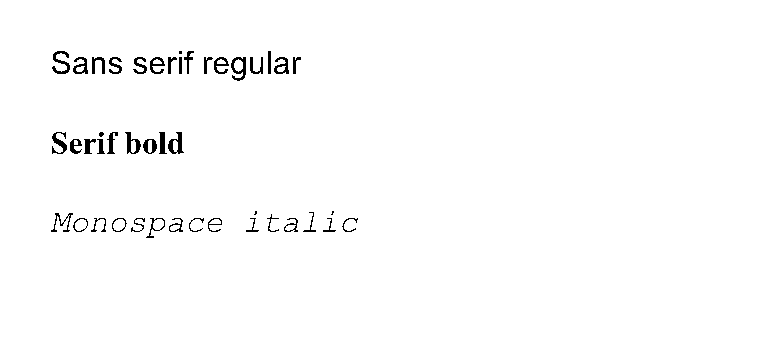
Draws three lines, each with a different generic family and style.
The family and the FontStyle flags (Bold, Italic, Underline, Strikeout) are independent choices; this picture changes both on every line to show the range of faces. Styles combine with |, for example FontStyle.Bold | FontStyle.Italic. The note the example wrote next to the image:
GenericSansSerif, GenericSerif, and GenericMonospace rendered.
internal static void FontFamiliesAndStyles(ExampleContext c)
{
    using var bitmap = ExampleSupport.NewCanvas(760, 360, Color.White);
    using var g = Graphics.FromImage(bitmap);
    using var brush = new SolidBrush(Color.Black);
    using var regular = new DrawingFont(FontFamily.GenericSansSerif, 24, FontStyle.Regular);
    using var bold = new DrawingFont(FontFamily.GenericSerif, 24, FontStyle.Bold);
    using var italic = new DrawingFont(FontFamily.GenericMonospace, 24, FontStyle.Italic);
    g.DrawString("Sans serif regular", regular, brush, 50, 45);
    g.DrawString("Serif bold", bold, brush, 50, 125);
    g.DrawString("Monospace italic", italic, brush, 50, 205);
    File.WriteAllText(c.Path("FontStyles-font-families.txt"), "GenericSansSerif, GenericSerif, and GenericMonospace rendered.");
    ExampleSupport.Save(bitmap, c, "FontStyles-font-families.png", ImageFormat.Png);
}
PrivateFonts
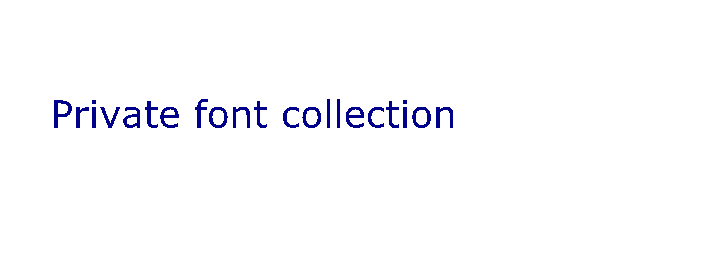
Loads a TrueType file into a PrivateFontCollection and draws with its first family.
A private collection makes a font available to your program without installing it, which is how you get the same typography on every machine: ship the file, call AddFontFile (or AddMemoryFont for bytes you already hold), and use collection.Families. The example looks for a common system font so that it runs anywhere; in your application, point it at your own file and check that loading succeeded.
internal static void PrivateFontCollection(ExampleContext c)
{
    // Prefer a widely installed font so the result looks the same everywhere; otherwise take any .ttf.
    string fontsFolder = Environment.GetFolderPath(Environment.SpecialFolder.Fonts);
    string? fontPath = null;
    if (Directory.Exists(fontsFolder))
    {
        fontPath = new[] { "verdana.ttf", "arial.ttf", "DejaVuSans.ttf", "LiberationSans-Regular.ttf" }
            .Select(name => System.IO.Path.Combine(fontsFolder, name))
            .FirstOrDefault(File.Exists)
            ?? Directory.EnumerateFiles(fontsFolder, "*.ttf").FirstOrDefault();
    }
    using var collection = new PrivateFontCollection();
    FontFamily family = FontFamily.GenericSansSerif;
    if (fontPath != null)
    {
        collection.AddFontFile(fontPath);
        family = collection.Families.FirstOrDefault() ?? family;
    }
    using var font = new DrawingFont(family, 28, FontStyle.Regular);
    using var bitmap = ExampleSupport.NewCanvas(720, 260, Color.White);
    using var g = Graphics.FromImage(bitmap);
    using var brush = new SolidBrush(Color.DarkBlue);
    g.DrawString(fontPath == null ? "Generic fallback font" : "Private font collection", font, brush, 50, 90);
    ExampleSupport.Save(bitmap, c, "PrivateFonts-private-font.png", ImageFormat.Png);
}
MultilingualText
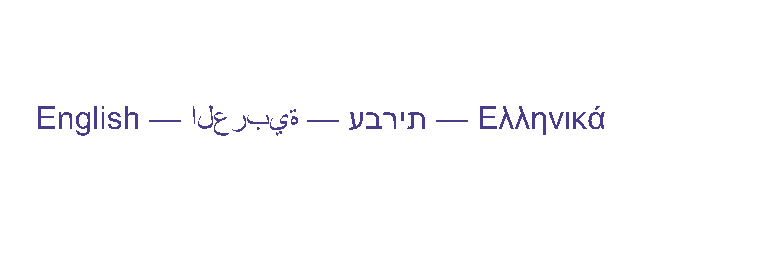
Draws one string that mixes Latin, Arabic, Hebrew and Greek.
Arabic and Hebrew run right to left inside the line while the surrounding text runs left to right; a single DrawString call handles the mix. Whether every script renders depends on the font having the glyphs (see FontFallback). Check shaping-heavy scripts with the fonts you will deploy.
internal static void BidiAndMultilingualText(ExampleContext c)
{
    using var bitmap = ExampleSupport.NewCanvas(760, 280, Color.White);
    using var g = Graphics.FromImage(bitmap);
    using var font = new DrawingFont(FontFamily.GenericSansSerif, 24);
    using var brush = new SolidBrush(Color.DarkSlateBlue);
    g.DrawString("English — العربية — עברית — Ελληνικά", font, brush, 35, 100);
    ExampleSupport.Save(bitmap, c, "MultilingualText-bidi-multilingual.png", ImageFormat.Png);
}
FontFallback
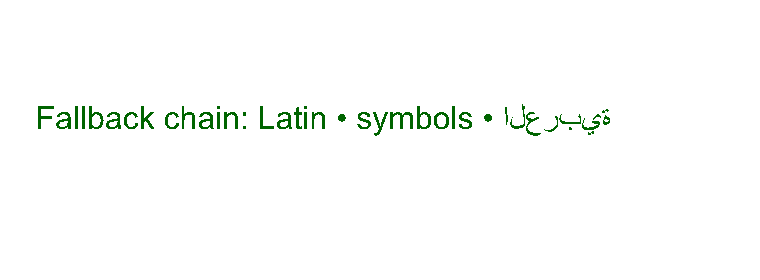
Draws Latin letters, symbols and Arabic with one font and a fallback chain.
When the primary font lacks a glyph, Graphics.FontFallback (here FontFallbackChain.CreateDefault(), built from fonts installed on the machine) is searched in order for one that has it. The picture shows the result, not which font drew each part. Add families to a chain with Add to control the search order.
internal static void FontFallback(ExampleContext c)
{
    using var bitmap = ExampleSupport.NewCanvas(760, 280, Color.White);
    using var g = Graphics.FromImage(bitmap);
    using var font = new DrawingFont(FontFamily.GenericSansSerif, 24);
    using var brush = new SolidBrush(Color.DarkGreen);
    g.FontFallback = FontFallbackChain.CreateDefault();
    g.DrawString("Fallback chain: Latin • symbols • العربية", font, brush, 35, 100);
    ExampleSupport.Save(bitmap, c, "FontFallback-font-fallback.png", ImageFormat.Png);
}
RichText

Styles parts of one string with RichTextRuns.
RichTextOptions carries the default family, size and style. Each run is (start index, length) into the string and overrides only what you set on it (style, family, size, brush); characters outside every run keep the defaults. The three runs here cover Rich (bold, dark red), text (serif, larger) and runs (italic, blue). Double-check the indices against the string: a run that is off by one styles the wrong letters.
internal static void RichTextRuns(ExampleContext c)
{
    using var bitmap = ExampleSupport.NewCanvas(760, 300, Color.White);
    using var g = Graphics.FromImage(bitmap);
    using var defaultBrush = new SolidBrush(Color.Black);
    using var redBrush = new SolidBrush(Color.DarkRed);
    using var blueBrush = new SolidBrush(Color.DarkBlue);
    var options = new RichTextOptions(FontFamily.GenericSansSerif, 24, FontStyle.Regular);
    const string text = "Rich text runs";
    // A run is (start index, length) in the string. Uncovered characters keep the defaults.
    options.Runs.Add(new RichTextRun(0, 4) { FontStyle = FontStyle.Bold, Brush = redBrush });      // "Rich"
    options.Runs.Add(new RichTextRun(5, 4) { FontFamily = FontFamily.GenericSerif, EmSize = 34 }); // "text"
    options.Runs.Add(new RichTextRun(10, 4) { FontStyle = FontStyle.Italic, Brush = blueBrush });  // "runs"
    g.DrawRichText(text, options, defaultBrush, new RectangleF(50, 90, 650, 100));
    ExampleSupport.Save(bitmap, c, "RichText-rich-text-runs.png", ImageFormat.Png);
}
TextOnPath
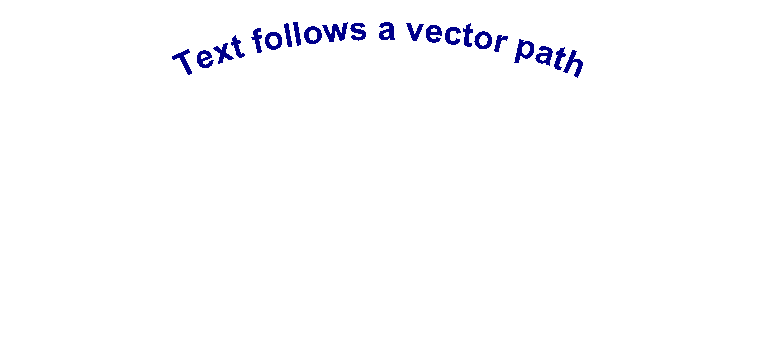
Draws text along an arc with DrawStringOnPath.
Each glyph is placed on the path and rotated to follow its direction. The path itself is not stroked; draw it separately if you want it visible. The StringFormat with Alignment = Center centres the text along the path (the default starts at the beginning), and a TextOnPathOptions can offset the text from the path or choose what happens when the text is longer than the path. This feature needs a font with outlines, so see the note at the top about generic families.
internal static void TextOnPath(ExampleContext c)
{
    using var bitmap = ExampleSupport.NewCanvas(760, 360, Color.White);
    using var g = Graphics.FromImage(bitmap);
    using var path = new GraphicsPath();
    using var font = new DrawingFont(FontFamily.GenericSansSerif, 25, FontStyle.Bold);
    using var brush = new SolidBrush(Color.DarkBlue);
    path.AddArc(new RectangleF(100, 40, 560, 260), 180, 180);
    // Centre the text along the path instead of starting at its beginning.
    using var centered = new StringFormat { Alignment = StringAlignment.Center };
    g.DrawStringOnPath("Text follows a vector path", font, brush, path, centered);
    ExampleSupport.Save(bitmap, c, "TextOnPath-text-on-path.png", ImageFormat.Png);
}
TextRendering
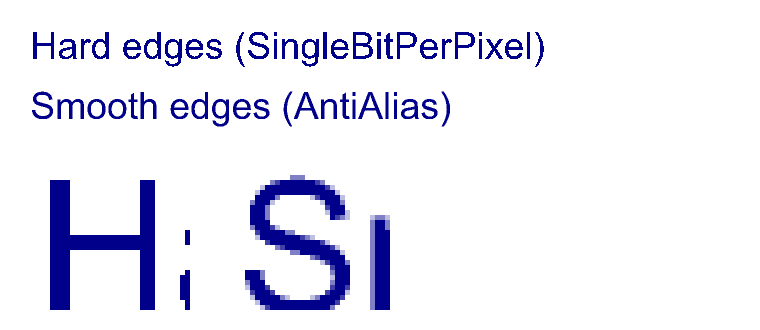
Draws one line with TextRenderingHint.SingleBitPerPixel and one with TextRenderingHint.AntiAlias, then enlarges the first letter of each so the pixels are visible.
The hint is part of the graphics state and applies to text drawn after it is set. AntiAlias, AntiAliasGridFit and ClearTypeGridFit all use the same greyscale antialiasing (glyphs are not snapped to the pixel grid, and there is no colour fringing); SingleBitPerPixel and SingleBitPerPixelGridFit give hard edges. With the default SystemDefault, text follows SmoothingMode: smooth when SmoothingMode.AntiAlias is set, hard-edged otherwise. The state the example recorded:
TextRenderingHint=AntiAlias
internal static void TextRenderingSettings(ExampleContext c)
{
    using var bitmap = ExampleSupport.NewCanvas(760, 330, Color.White);
    using var g = Graphics.FromImage(bitmap);
    using var font = new DrawingFont(DRIT.Drawing.Text.FontFamily.GenericSansSerif, 28);
    using var brush = new SolidBrush(Color.DarkBlue);

    // The hint is part of the Graphics state: it applies to the text drawn after it is set.
    g.TextRenderingHint = DRIT.Drawing.Text.TextRenderingHint.SingleBitPerPixel;
    g.DrawString("Hard edges (SingleBitPerPixel)", font, brush, 30, 25);
    g.TextRenderingHint = DRIT.Drawing.Text.TextRenderingHint.AntiAlias;
    g.DrawString("Smooth edges (AntiAlias)", font, brush, 30, 85);

    // Enlarge the first letter of each line (nearest neighbour) to show the individual pixels.
    g.InterpolationMode = InterpolationMode.NearestNeighbor;
    g.DrawImage(bitmap, new RectangleF(30, 150, 160, 160), new RectangleF(29, 26, 32, 32), GraphicsUnit.Pixel);
    g.DrawImage(bitmap, new RectangleF(230, 150, 160, 160), new RectangleF(29, 86, 32, 32), GraphicsUnit.Pixel);
    File.WriteAllText(c.Path("TextRendering-text-rendering.txt"), $"TextRenderingHint={g.TextRenderingHint}");
    ExampleSupport.Save(bitmap, c, "TextRendering-text-rendering-settings.png", ImageFormat.Png);
}