Recipes
Application-style examples that combine drawing, images, text and vector output. They draw on generated pictures so that each one runs without any input file; with real input, choose image size and decode limits deliberately, handle failures per file, and think about aspect ratio when fitting an image into a fixed rectangle.
CaptionedPhoto
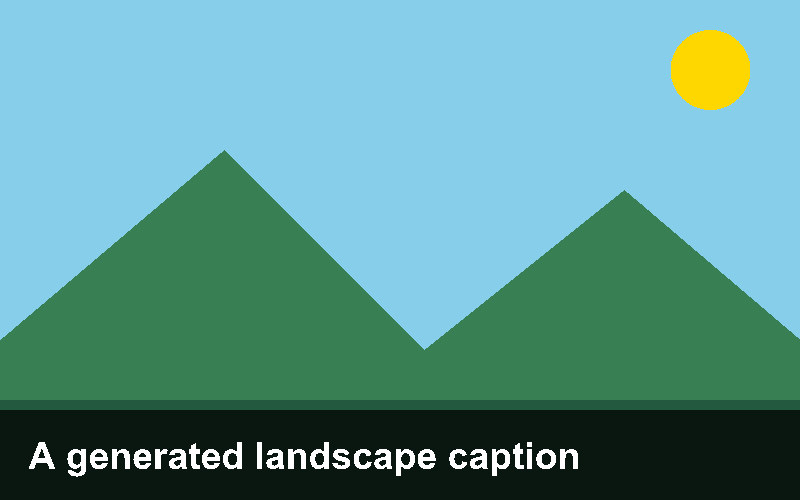
Adds a caption bar to a picture: a translucent panel along the bottom with white text on it.
The panel is a filled rectangle with an alpha colour, so the picture shows faintly through it and the text stays readable on any content. The panel and text positions are fixed numbers here; derive them from the image size (and measure the text with MeasureString) for captions of unknown length or pictures of other sizes.
internal static void RecipeCaptionedPhoto(ExampleContext context)
{
    using var photo = ExampleSupport.CreatePhotoLike(800, 500);
    using var graphics = Graphics.FromImage(photo);
    using var panel = new SolidBrush(Color.FromArgb(190, 0, 0, 0));
    using var textBrush = new SolidBrush(Color.White);
    using var font = new DrawingFont(FontFamily.GenericSansSerif, 28, FontStyle.Bold);
    graphics.FillRectangle(panel, 0, 410, 800, 90);
    graphics.DrawString("A generated landscape caption", font, textBrush, 28, 435);
    ExampleSupport.Save(photo, context, "CaptionedPhoto-captioned-photo.png", ImageFormat.Png);
}
FramedImage
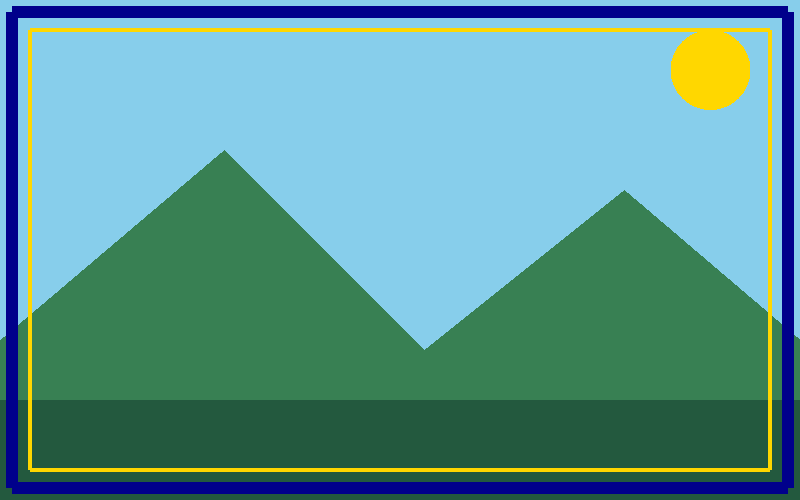
Draws two rectangle outlines over a picture to make a frame.
The outlines are drawn on the image, so the canvas does not grow and the frame covers the picture's edge. A pen is centred on its path, so a 12-unit pen at inset 12 covers pixels 6 to 18. Scale the pen widths and insets together with the image size so the frame keeps its proportions and does not hide the subject.
internal static void FramedImage(ExampleContext c)
{
    using var bitmap = ExampleSupport.CreatePhotoLike(800, 500);
    using var g = Graphics.FromImage(bitmap);
    using var outer = new Pen(Color.DarkBlue, 12);
    using var inner = new Pen(Color.Gold, 4);
    g.DrawRectangle(outer, new RectangleF(12, 12, 776, 476));
    g.DrawRectangle(inner, new RectangleF(30, 30, 740, 440));
    ExampleSupport.Save(bitmap, c, "FramedImage-framed-image.png", ImageFormat.Png);
}
Callout
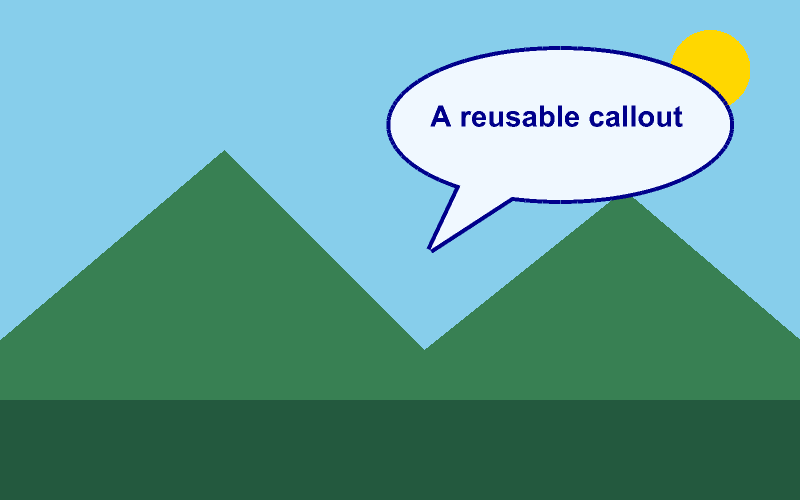
Draws a speech bubble from an ellipse and a triangular pointer, with text inside.
Outlining two overlapping shapes separately leaves the pointer's outline visible across the bubble. The trick here is the drawing order: stroke both shapes with a pen twice as wide as the outline you want, then fill both on top. The fill covers the inner half of every stroke, including the part of the pointer's outline that runs inside the bubble, so only one clean outline remains around the combined shape. This needs an opaque fill, because a translucent one would let the hidden half of the stroke show through. The positions of the pointer and the text rectangle are hard-coded; move them together when you point at something else, and check that the text still fits.
internal static void Callout(ExampleContext c)
{
    using var bitmap = ExampleSupport.CreatePhotoLike(800, 500);
    using var g = Graphics.FromImage(bitmap);
    g.SmoothingMode = SmoothingMode.AntiAlias;
    using var body = new GraphicsPath();
    using var pointer = new GraphicsPath();
    using var fill = new SolidBrush(Color.AliceBlue);
    using var pen = new Pen(Color.DarkBlue, 8) { LineJoin = LineJoin.Round };   // 8 wide: only the outer 4 stay visible
    body.AddEllipse(new RectangleF(390, 50, 340, 150));
    pointer.AddPolygon(new[] { new PointF(470, 165), new PointF(430, 250), new PointF(530, 185) });

    // Stroke both shapes first, then fill both on top. The fill hides the inner half of every stroke,
    // including the stretch of the pointer's outline that runs inside the bubble, so one clean outline
    // is left around the combined shape.
    g.DrawPath(pen, body);
    g.DrawPath(pen, pointer);
    g.FillPath(fill, body);
    g.FillPath(fill, pointer);
    using var font = new DrawingFont(FontFamily.GenericSansSerif, 22, FontStyle.Bold);
    using var text = new SolidBrush(Color.DarkBlue);
    g.DrawString("A reusable callout", font, text, new RectangleF(430, 100, 260, 50));
    ExampleSupport.Save(bitmap, c, "Callout-callout.png", ImageFormat.Png);
}
ChartCard
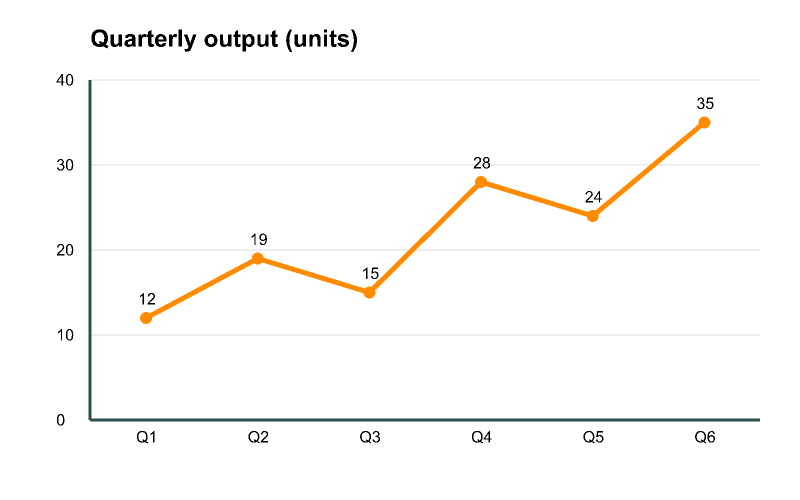
Draws a line chart from a data array: gridlines and tick labels, axes, a polyline with markers, value labels and a title.
The key step is mapping data to canvas coordinates. Two small functions do it: X(index) centres each period in its slot across the plot width, and Y(value) scales a value from 0 to the axis maximum onto the plot height, flipped because canvas y grows downwards. Everything else, including the ticks and labels, is positioned through those functions, so changing the data or the axis range changes the whole chart consistently. Antialiasing is on so the line and markers are smooth.
internal static void ChartCard(ExampleContext c)
{
    string[] periods = { "Q1", "Q2", "Q3", "Q4", "Q5", "Q6" };
    double[] output = { 12, 19, 15, 28, 24, 35 };

    using var bitmap = ExampleSupport.NewCanvas(800, 500, Color.White);
    using var g = Graphics.FromImage(bitmap);
    g.SmoothingMode = SmoothingMode.AntiAlias;
    using var axis = new Pen(Color.DarkSlateGray, 3);
    using var grid = new Pen(Color.Gainsboro, 1);
    using var line = new Pen(Color.DarkOrange, 5);
    using var title = new DrawingFont(FontFamily.GenericSansSerif, 18, FontStyle.Bold);
    using var label = new DrawingFont(FontFamily.GenericSansSerif, 12);
    using var black = new SolidBrush(Color.Black);
    using var marker = new SolidBrush(Color.DarkOrange);

    // The plot area in pixels, and the data range it represents (0..40, ticks every 10).
    const float left = 90, right = 760, top = 80, bottom = 420;
    const double axisMax = 40, tickStep = 10;

    // Data to canvas coordinates: x centres each period in its slot; y grows upwards from the baseline.
    float X(int index) => left + (right - left) * (index + 0.5f) / periods.Length;
    float Y(double value) => bottom - (float)(value / axisMax) * (bottom - top);

    for (double tick = 0; tick <= axisMax; tick += tickStep)
    {
        g.DrawLine(grid, left, Y(tick), right, Y(tick));
        g.DrawString(tick.ToString("0"), label, black, left - 34, Y(tick) - 9);
    }
    g.DrawLine(axis, left, bottom, right, bottom);
    g.DrawLine(axis, left, bottom, left, top);

    var points = new PointF[output.Length];
    for (int i = 0; i < output.Length; i++)
        points[i] = new PointF(X(i), Y(output[i]));
    g.DrawLines(line, points);
    for (int i = 0; i < points.Length; i++)
    {
        g.FillEllipse(marker, new RectangleF(points[i].X - 6, points[i].Y - 6, 12, 12));
        g.DrawString(output[i].ToString("0"), label, black, points[i].X - 8, points[i].Y - 28);
        g.DrawString(periods[i], label, black, points[i].X - 10, bottom + 8);
    }
    g.DrawString("Quarterly output (units)", title, black, left, 25);
    ExampleSupport.Save(bitmap, c, "ChartCard-chart-card.png", ImageFormat.Png);
}
VectorBadge
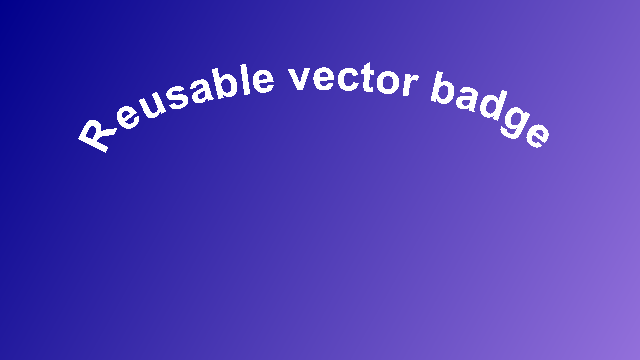
Builds a badge as a vector scene (a gradient background and text along an arc), saves it as SVG and renders a PNG preview.
The text is placed with DrawStringOnPath on an arc and centred along it. Written as SVG, the glyphs become paths, so the badge looks the same in any viewer without the font installed. Keep the SVG as the master and render PNGs of whatever size you need from it.
internal static void ReusableBadge(ExampleContext c)
{
    using var svg = new SvgImage(640, 360);
    using (var g = svg.CreateGraphics())
    using (var brush = new LinearGradientBrush(new PointF(0, 0), new PointF(640, 360), Color.DarkBlue, Color.MediumPurple))
    using (var font = new DrawingFont(FontFamily.GenericSansSerif, 32, FontStyle.Bold))
    using (var text = new SolidBrush(Color.White))
    {
        g.FillRectangle(brush, new RectangleF(0, 0, 640, 360));
        using var path = new GraphicsPath();
        path.AddArc(new RectangleF(100, 90, 440, 160), 180, 180);
        using var centered = new StringFormat { Alignment = StringAlignment.Center };
        g.DrawStringOnPath("Reusable vector badge", font, text, path, centered);
    }
    svg.Save(c.Path("VectorBadge-reusable-badge.svg"));
    using var raster = svg.RenderToBitmap();
    ExampleSupport.Save(raster, c, "VectorBadge-reusable-badge.png", ImageFormat.Png);
}
BatchThumbnails



Creates three source PNGs, then loads every *.png in that folder with a pixel limit, draws each into a 160 × 100 rectangle, and saves it.
The decode limit (ImageDecodeLimits(maxPixels: 1_000_000)) keeps an oversized file from exhausting memory. Two things to change for real input: the fixed destination rectangle stretches images with a different aspect ratio (compute a fit or crop rectangle instead), and the loop has no error handling, so one corrupt file stops the whole batch. Wrap each file in try/catch when the inputs are independent. The loop enumerates all *.png files in the folder, in path order, including any that were already there.
internal static void BatchThumbnails(ExampleContext c)
{
    string inputDirectory = c.Path("BatchThumbnails-inputs");
    Directory.CreateDirectory(inputDirectory);
    for (int i = 0; i < 3; i++)
    {
        using var source = ExampleSupport.CreatePhotoLike(320 + i * 20, 200 + i * 10);
        source.Save(System.IO.Path.Combine(inputDirectory, $"source-{i}.png"), ImageFormat.Png);
    }
    foreach (string input in Directory.EnumerateFiles(inputDirectory, "*.png").OrderBy(path => path))
        using (var image = Image.FromFile(input, new ImageDecodeLimits(maxPixels: 1_000_000)))
        using (var thumbnail = ExampleSupport.NewCanvas(160, 100, Color.White))
        using (var g = Graphics.FromImage(thumbnail))
        {
            g.DrawImage(image, new Rectangle(0, 0, 160, 100));
            ExampleSupport.Save(thumbnail, c, $"BatchThumbnails-{System.IO.Path.GetFileNameWithoutExtension(input)}.png", ImageFormat.Png);
        }
}