Drawing shapes and paths
Shapes are drawn with a Pen (the outline) or filled with a Brush (the interior), and most Draw* and Fill* methods take a bounding rectangle rather than a centre and radius. For anything more complex, build a GraphicsPath once and reuse it to fill, stroke, measure and hit-test.
LinesAndPolylines
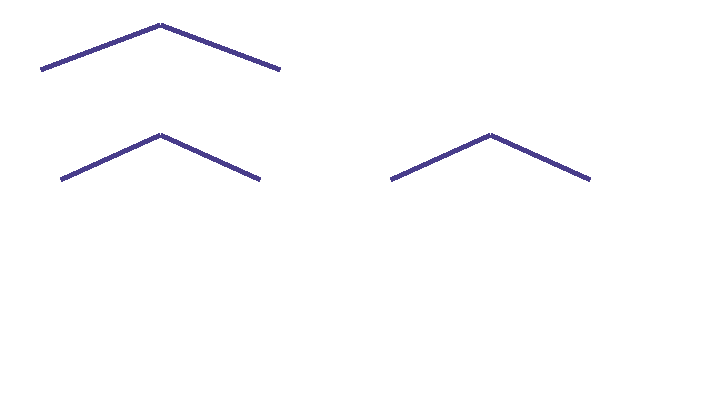
Draws one connected polyline, then two independent ones.
DrawLines joins every consecutive pair of points in a single array. To draw disconnected pieces with one pen, DrawPolylineGroup takes several arrays and treats each as its own figure, so no segment bridges the gap between them. Use a closed polygon or a path when the last point must connect back to the first.
internal static void ShapesLinesAndPolylines(ExampleContext context)
{
    using var bitmap = ExampleSupport.NewCanvas(720, 420, Color.White);
    using var graphics = Graphics.FromImage(bitmap);
    using var pen = new Pen(Color.DarkSlateBlue, 5);
    graphics.DrawLines(pen, new[] { new PointF(40, 70), new PointF(160, 25), new PointF(280, 70) });
    graphics.DrawPolylineGroup(pen, new[]
    {
        new[] { new PointF(60, 180), new PointF(160, 135), new PointF(260, 180) },
        new[] { new PointF(390, 180), new PointF(490, 135), new PointF(590, 180) },
    });
    ExampleSupport.Save(bitmap, context, "LinesAndPolylines-lines-polylines.png", ImageFormat.Png);
}
BasicShapes
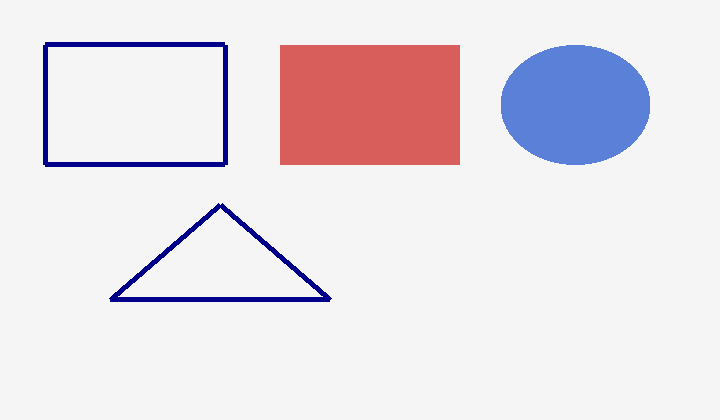
Draws outlined and filled rectangles, an ellipse and a polygon.
DrawRectangle and DrawPolygon stroke with a pen; FillRectangle and FillEllipse paint with a brush. A polygon closes itself. To get a filled shape with an outline, make both calls and fill first, so the outline is not covered by the fill. The fills here have alpha 220, so the grey background shows through slightly.
internal static void ShapesBasicGeometry(ExampleContext context)
{
    using var bitmap = ExampleSupport.NewCanvas(720, 420, Color.WhiteSmoke);
    using var graphics = Graphics.FromImage(bitmap);
    using var outline = new Pen(Color.DarkBlue, 5);
    using var red = new SolidBrush(Color.FromArgb(220, 210, 70, 65));
    using var blue = new SolidBrush(Color.FromArgb(220, 65, 110, 210));
    graphics.DrawRectangle(outline, 45, 45, 180, 120);
    graphics.FillRectangle(red, 280, 45, 180, 120);
    graphics.FillEllipse(blue, new RectangleF(500, 45, 150, 120));
    graphics.DrawPolygon(outline, new[]
    {
        new PointF(110, 300), new PointF(220, 205), new PointF(330, 300),
    });
    ExampleSupport.Save(bitmap, context, "BasicShapes-basic-shapes.png", ImageFormat.Png);
}
ArcsAndPie
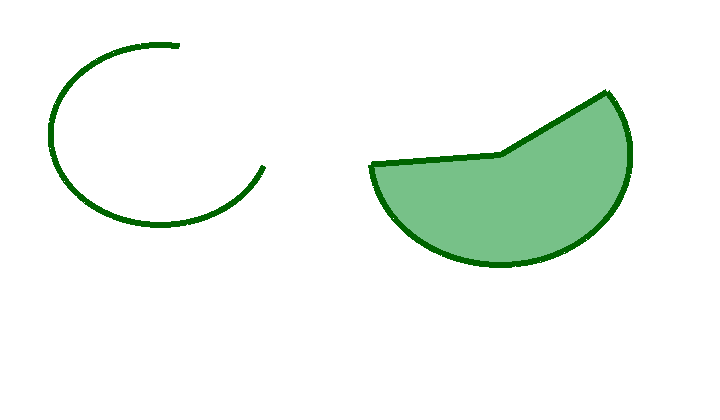
Draws an arc with DrawArc and a filled, outlined pie with FillPie and DrawPie.
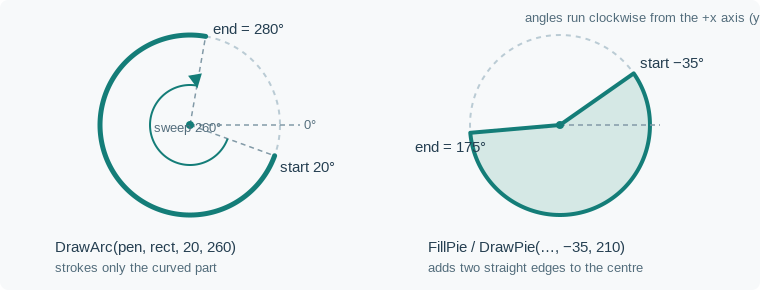
Both take the bounding rectangle of the ellipse, a start angle and a sweep angle in degrees. Angles run clockwise from the positive x axis, because y points down. DrawArc strokes only the curved part; a pie adds two straight edges from the ends of the arc to the centre, which is what makes it fillable.
internal static void ShapesArcsAndPie(ExampleContext context)
{
    using var bitmap = ExampleSupport.NewCanvas(720, 420, Color.White);
    using var graphics = Graphics.FromImage(bitmap);
    using var outline = new Pen(Color.DarkGreen, 6);
    using var fill = new SolidBrush(Color.FromArgb(210, 90, 180, 110));
    graphics.DrawArc(outline, new RectangleF(50, 45, 220, 180), 20, 260);
    graphics.FillPie(fill, new RectangleF(370, 45, 260, 220), -35, 210);
    graphics.DrawPie(outline, new RectangleF(370, 45, 260, 220), -35, 210);
    ExampleSupport.Save(bitmap, context, "ArcsAndPie-arcs-pie.png", ImageFormat.Png);
}
GraphicsPath
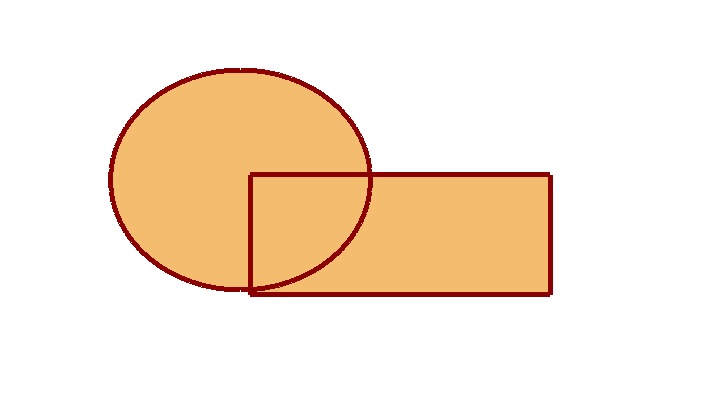
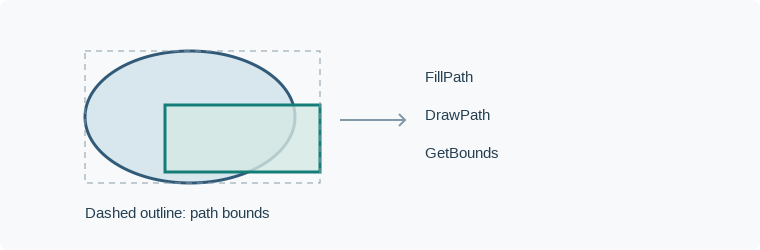
Collects an ellipse and a rectangle into one path, fills and outlines it, and reads its bounds.
A GraphicsPath stores geometry, so FillPath and DrawPath use exactly the same shape and you describe it once. GetBounds returns the smallest enclosing rectangle: a quick rejection test, not a test of the interior (see PathHitTesting).
internal static void ShapesGraphicsPath(ExampleContext context)
{
    using var bitmap = ExampleSupport.NewCanvas(720, 420, Color.White);
    using var graphics = Graphics.FromImage(bitmap);
    using var path = new GraphicsPath(FillMode.Winding);
    using var outline = new Pen(Color.DarkRed, 5);
    using var fill = new SolidBrush(Color.FromArgb(200, 240, 170, 70));
    path.AddEllipse(new RectangleF(110, 70, 260, 220));
    path.AddRectangle(new RectangleF(250, 175, 300, 120));
    path.CloseAllFigures();
    graphics.FillPath(fill, path);
    graphics.DrawPath(outline, path);
    Console.WriteLine($"  path bounds: {path.GetBounds()}");
    ExampleSupport.Save(bitmap, context, "GraphicsPath-graphics-path.png", ImageFormat.Png);
}
BezierCurves
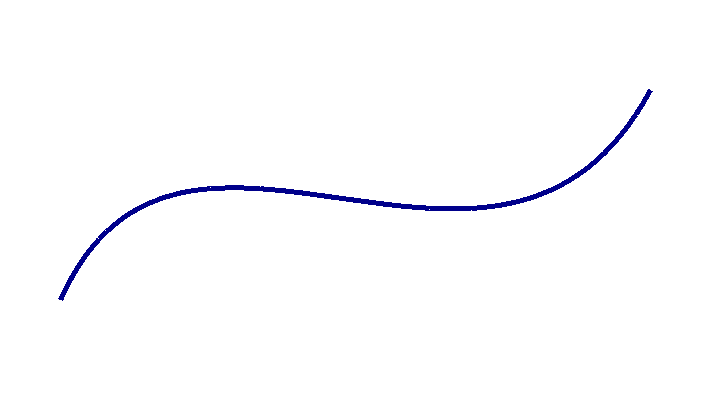
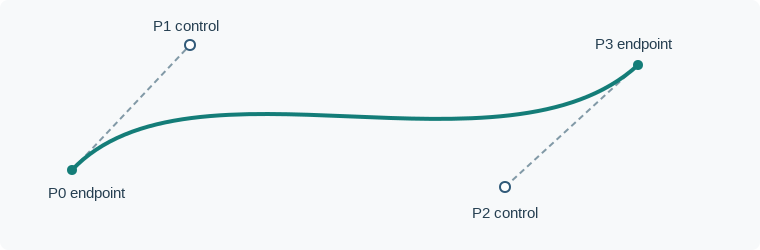
Draws one cubic Bézier curve with DrawBezier(pen, start, control1, control2, end).
The curve passes through the start and end points. The two control points are never drawn: they set the direction the curve leaves and arrives and how far it bulges. To chain curves into a longer contour, add them to a GraphicsPath; for a smooth join, the last handle of one curve and the first handle of the next must lie on one straight line through the shared point.
internal static void BezierCurves(ExampleContext c)
{
    using var bitmap = ExampleSupport.NewCanvas(720, 400, Color.White);
    using var g = Graphics.FromImage(bitmap);
    using var pen = new Pen(Color.DarkBlue, 5);
    g.DrawBezier(pen, new PointF(60, 300), new PointF(180, 30), new PointF(500, 370), new PointF(650, 90));
    ExampleSupport.Save(bitmap, c, "BezierCurves-bezier-curves.png", ImageFormat.Png);
}
CardinalCurves
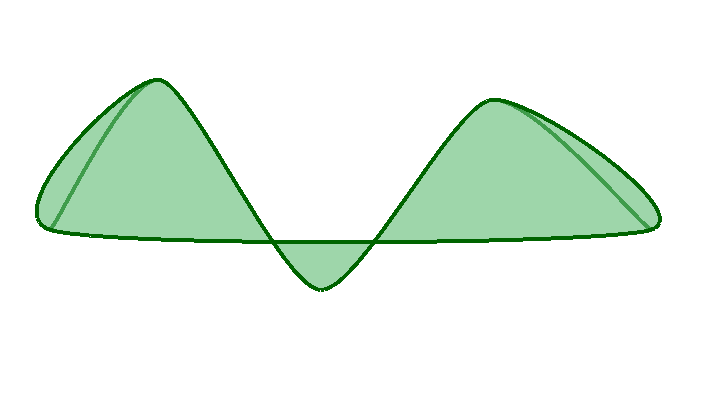
Passes a smooth curve through a list of points, once open (stroked) and once closed (filled and stroked).
Unlike a Bézier curve, a cardinal spline goes through every point you give it. The tension (0.35 here) controls how strongly it bends between them; a tension of 0 gives straight segments. Closing the curve connects the last point back to the first so it can be filled.
internal static void CardinalAndClosedCurves(ExampleContext c)
{
    using var bitmap = ExampleSupport.NewCanvas(720, 400, Color.White);
    using var g = Graphics.FromImage(bitmap);
    using var pen = new Pen(Color.DarkGreen, 4);
    using var brush = new SolidBrush(Color.FromArgb(160, 100, 190, 120));
    var points = new[] { new PointF(50, 230), new PointF(160, 80), new PointF(320, 290), new PointF(490, 100), new PointF(650, 230) };
    g.DrawCurve(pen, points, 0.35f);
    g.FillClosedCurve(brush, points, FillMode.Winding, 0.35f);
    g.DrawClosedCurve(pen, points, 0.35f, FillMode.Winding);
    ExampleSupport.Save(bitmap, c, "CardinalCurves-cardinal-curves.png", ImageFormat.Png);
}
PathFillRules

Fills the same nested ellipses with FillMode.Alternate (left) and FillMode.Winding (right).
With Alternate, each contour you cross toggles inside and outside, so the inner ellipse becomes a hole. With Winding, the direction of each contour counts: when both ellipses run the same way, the centre is wound twice and stays filled. Reverse the inner contour and the winding rule also produces a hole, so the two rules are not interchangeable for overlapping shapes.
internal static void PathFillRules(ExampleContext c)
{
    using var bitmap = ExampleSupport.NewCanvas(720, 360, Color.White);
    using var g = Graphics.FromImage(bitmap);
    using var alternate = new GraphicsPath(FillMode.Alternate);
    using var winding = new GraphicsPath(FillMode.Winding);
    using var brush = new SolidBrush(Color.FromArgb(200, 70, 130, 210));
    alternate.AddEllipse(new RectangleF(70, 70, 230, 190));
    alternate.AddEllipse(new RectangleF(130, 115, 110, 90));
    winding.AddEllipse(new RectangleF(420, 70, 230, 190));
    winding.AddEllipse(new RectangleF(480, 115, 110, 90));
    g.FillPath(brush, alternate);
    g.FillPath(new SolidBrush(Color.FromArgb(200, 210, 100, 70)), winding);
    ExampleSupport.Save(bitmap, c, "PathFillRules-path-fill-rules.png", ImageFormat.Png);
}
RegionOperations
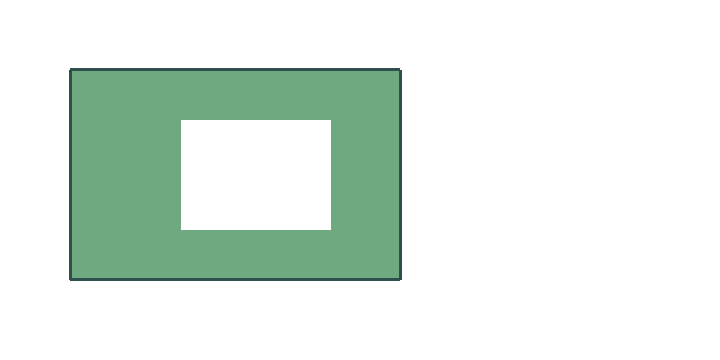
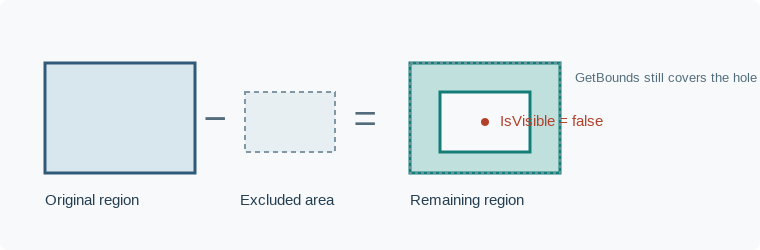
Starts from a rectangular Region, excludes a smaller rectangle, and fills what remains.
A Region describes an area, and you combine areas with Exclude, Intersect, Union and Xor. The example also asks IsVisible about a point in the hole and gets false, even though GetBounds still covers the hole. Use region membership, not the bounds, for selection and clipping decisions.
internal static void RegionOperations(ExampleContext c)
{
    using var bitmap = ExampleSupport.NewCanvas(720, 360, Color.White);
    using var g = Graphics.FromImage(bitmap);
    using var region = new Region(new RectangleF(70, 70, 330, 210));
    region.Exclude(new RectangleF(180, 120, 150, 110));
    using var brush = new SolidBrush(Color.FromArgb(210, 80, 150, 100));
    g.FillRegion(brush, region);
    using var outline = new Pen(Color.DarkSlateGray, 3);
    g.DrawRectangle(outline, new RectangleF(70, 70, 330, 210));
    Console.WriteLine($"  region bounds: {region.GetBounds()}; center visible={region.IsVisible(235, 175)}");
    ExampleSupport.Save(bitmap, c, "RegionOperations-region-operations.png", ImageFormat.Png);
}
PathHitTesting
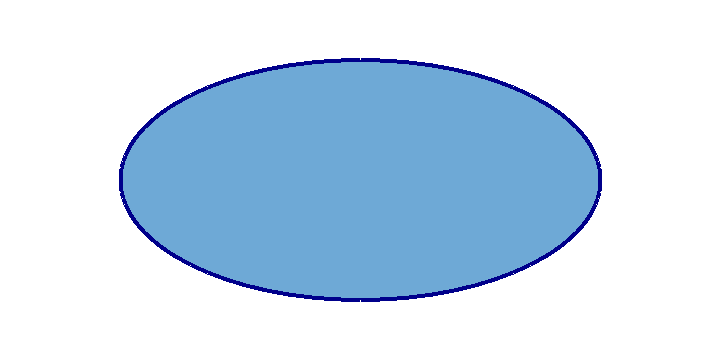
Asks whether a point lies inside a path with IsVisible.
IsVisible tests the filled interior, not the stroke, so it is a point-in-shape test and not a "near the outline" test. The bounding rectangle accepts points near an ellipse's corners that are outside the ellipse; the path test does not. When the point comes from the mouse, convert it into the coordinate space of the path first.
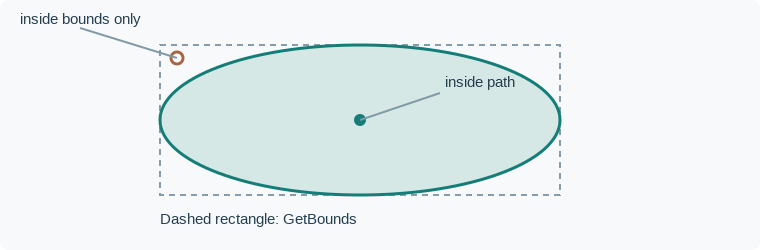
internal static void PathHitTesting(ExampleContext c)
{
    using var path = new GraphicsPath();
    using var bitmap = ExampleSupport.NewCanvas(720, 360, Color.White);
    using var g = Graphics.FromImage(bitmap);
    using var fill = new SolidBrush(Color.FromArgb(190, 60, 140, 200));
    using var pen = new Pen(Color.DarkBlue, 4);
    path.AddEllipse(new RectangleF(120, 60, 480, 240));
    g.FillPath(fill, path);
    g.DrawPath(pen, path);
    bool inside = path.IsVisible(new PointF(360, 180));
    Console.WriteLine($"  path bounds={path.GetBounds()}, center visible={inside}");
    ExampleSupport.Save(bitmap, c, "PathHitTesting-path-hit-testing.png", ImageFormat.Png);
}